Open your Resolve project and load up the final
project timeline


Right click to
>Add Track
>5.1>5.1 (not Film)

Edit your surround sound file on to the track

Solo the Surround sound track with the mix and check sync to make sure
that all the tracks are in sync


Indeed the track is surround sound
when you look at the track should see 6 channels
in playback

Next go to >Fairlight>Bus Format

Bus 1
Choose Format 5.1
Click on OK

Ready to export
>Click on the Deliver Tab

In the upper left corner click on Render Settings
Choose >ProRes 422 HQ

Make Sure Single Clip is selected and
Title the Filenmae and choose a location to save the file

Click Browse to navigate to the folder you want to save the QuickTime

Pick a Storage Drive and folder to save the file
Click OK

Make sure the Export Video is checked
Choose Format=QuickTime
Codec Apple ProRes 422 HQ (use for RTF Screenings)
Or what ProRes Codec you'd rather use for lower or higher quality
1920 x 1080 HD (use for RTF Screenings)

Or if you would like to export a UHD 3840 x 2160 version choose that setting
FPS 23.976 (or 24 or whatever frame rate your timeline is)

Choose Advanced Settings
Make sure Retain Sub-black and Super White Data is checked

Click on Audio tab

Codec AAC
Constant Bit Rate
Track Data Rate 320
Set Output Track 1 Bus 1 (5.1)

Last Add to Render Queue and render

Once the file renders open in Quicktime and choose
>Window>Show Movie Inspector


Should see audio settings as surround 5.1 (C, L, R, Ls, Rs, LFE)
Finally, if you are trying to playout via VLC OR ARE ADDING CAPTIONS you will need to change the timeline Start Timecode setting to start playback at 0 hour.
Go to DaVinci Resolve locate the sequence you want to change in the Bin

Right click it and >Timelines>Starting Timecode

Set TimeCode to 00:00:00:00

Choose to Start Render to create the QuickTIme

Once the file renders open in Quicktime and choose
>Window>Show Movie Inspector

Should see audio settings as surround 5.1 (C, L, R, Ls, Rs, LFE)
Back in your timeline...
To export the generated subtitles as a .srt file, navigate to the subtitle track and right click
Click on Export Subtitle...
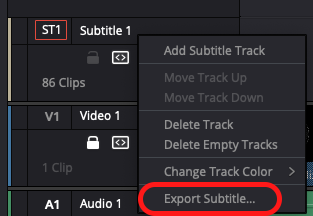
This menu should be called up
Name your file and make sure you're saving it to the right destination
Click Save
